


FOX PLAYER IPTV: Features, Setup and Complete Guide

Introduction
Finding the right IPTV player can make a major difference to your streaming experience. A good player should be fast, easy to navigate, compatible with your preferred device, and capable of organizing your legally authorized content without unnecessary complexity.
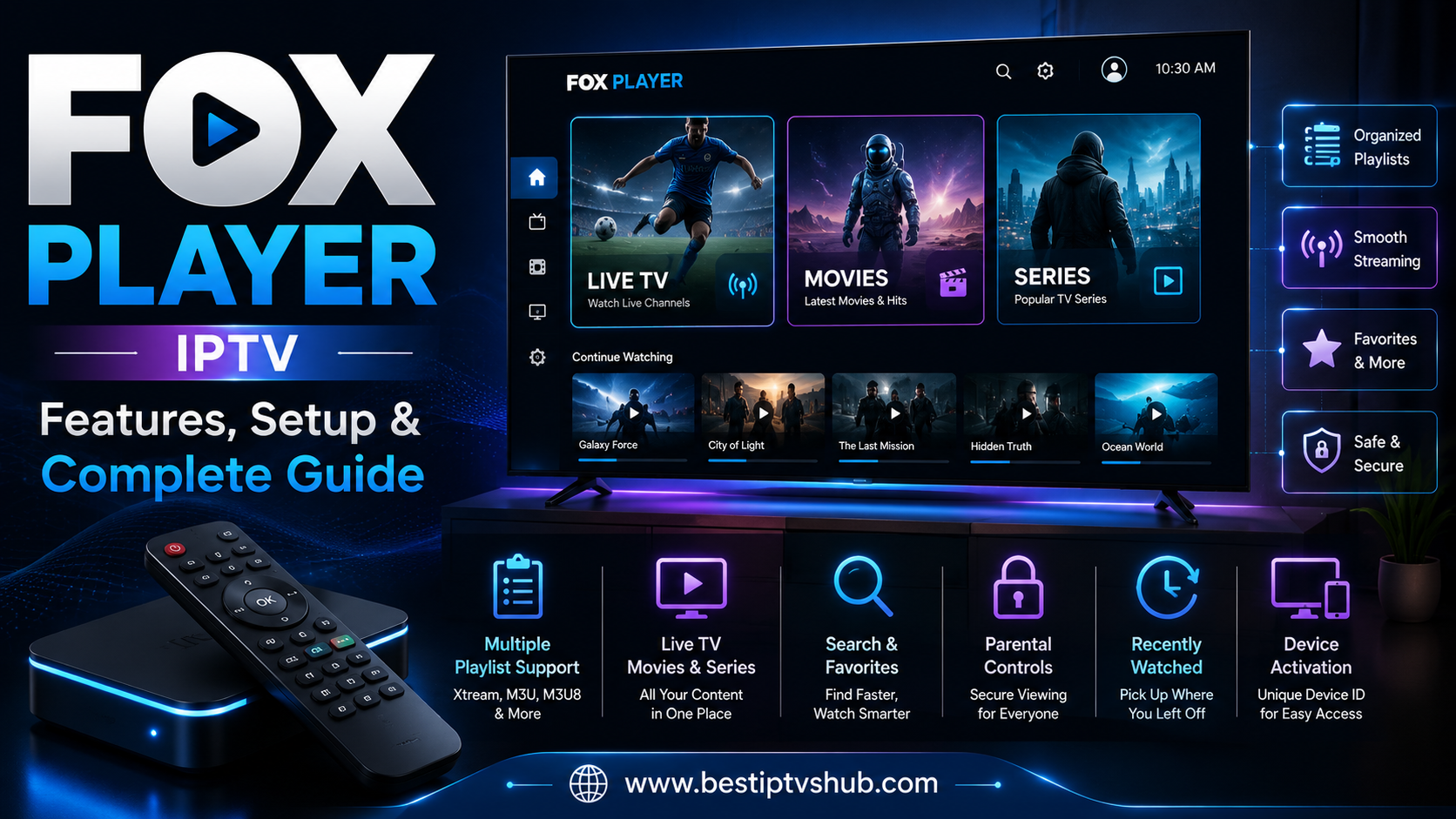
FOX PLAYER is an IPTV-style media player designed for Android mobile devices and Android TV. It allows users to add their own authorized playlists and streams using supported formats such as Xtream Codes, M3U, M3U8, and direct streams. The player is designed to organize content into sections such as Live TV, Movies, and Series while also offering features including search, favorites, recently watched content, device activation, and parental controls.
Quick Answer: What Is FOX PLAYER?
FOX PLAYER is a media player for Android and Android TV that lets users organize and play their own legally authorized IPTV playlists or direct streams. It supports common connection methods including Xtream credentials, M3U playlists, M3U8 playlists, and compatible direct streams. Importantly, an IPTV player and an IPTV content provider are not necessarily the same thing.
FOX PLAYER functions as the software used to access and organize content. Users are responsible for adding their own authorized playlists or media sources. This makes FOX PLAYER relevant for people looking for a simple IPTV interface without expecting the player itself to automatically include television channels, movies, or subscriptions.
FOX PLAYER at a Glance
| Feature | What It Does |
|---|---|
| Supported Platforms | Android phones, tablets and Android TV |
| Playlist Support | Xtream, M3U and M3U8 |
| Live TV | Organizes compatible live television streams |
| Movies | Dedicated section for supported movie content |
| Series | Organized access to compatible series content |
| Search | Helps users find content within their loaded source |
| Favorites | Saves frequently watched content |
| Recently Watched | Makes it easier to continue viewing |
| Parental Lock | Helps restrict access to selected categories |
| Device Activation | Uses a unique Device ID for activation options |
| Interface | Designed for mobile and remote-control navigation |
Features and availability may change as the application is updated, so users should always check the current version and official information before installing or activating the app.
What Is FOX PLAYER Designed For?
FOX PLAYER is designed for users who already have access to authorized streaming content and want a dedicated interface for organizing that content. Instead of manually opening individual links every time, a media player can provide a more structured experience. For example, a compatible playlist may contain:
Live television streams
Movies
TV series
Category information
Channel names
Content artwork
Other supported metadata
The player can then present this information in a more user-friendly format. For many users, the main benefit is organization. A large playlist can become difficult to manage if hundreds or thousands of entries are displayed as a simple list. An IPTV player can help separate content into categories and make navigation easier.
FOX PLAYER Features Explained
1. Support for Xtream Connections
Xtream-style credentials are commonly used by compatible streaming services and media systems. Depending on the authorized source, users may receive information such as:
Server address
Username
Password
FOX PLAYER supports compatible Xtream connections, allowing users to add supported content through this type of login. The advantage of this approach is convenience. Instead of manually entering individual stream links, the player can organize the compatible content provided through the connection. However, users should only use credentials provided by a legitimate and authorized content source. Never share your login information publicly.
2. M3U and M3U8 Playlist Support
M3U and M3U8 are common playlist formats used to organize media streams. A playlist can contain references to multiple channels or media files. FOX PLAYER supports compatible M3U and M3U8 playlists, giving users flexibility when connecting their own authorized content. This can be useful for users who prefer a URL-based playlist or have been provided with a legitimate playlist file. Before adding a playlist, check:
Whether the source is authorized
Whether the URL is correct
Whether your internet connection is stable
Whether the playlist format is supported
Whether the credentials are still active
If a playlist does not load correctly, the problem may come from the source rather than the FOX PLAYER application itself.
3. Live TV Organization
One of the main functions of an IPTV player is organizing compatible live television streams. FOX PLAYER provides a dedicated Live TV experience designed to make channel navigation easier. Depending on the content source, users may be able to browse:
Channel categories
Individual channels
Favorites
Recently accessed content
A well-organized interface becomes especially important when a playlist contains a large number of channels. Instead of scrolling through one extremely long list, categories can help users find content more quickly. For example, a user may want separate sections for:
News
Entertainment
Sports
Kids
Documentary
International programming
The exact categories depend on the playlist or content source.
4. Movies and Series Sections
FOX PLAYER is not limited to live streams. Compatible content can also be organized into dedicated sections for Movies and Series. This creates a more familiar streaming experience. Rather than viewing everything as a single playlist, users can move between different content types. For example:
- Live TV can focus on currently available channels.
- Movies can organize compatible on-demand titles.
- Series can group television shows and episodes.
The actual content available depends entirely on the user's authorized media source. The player itself should not be confused with the source of the content.
5. Search Functionality
Search is one of the most useful features in any large media library. Imagine manually scrolling through hundreds of channels or titles to find one item. A search feature can significantly reduce the time required.FOX PLAYER includes search functionality designed to help users find compatible channels, movies, or series within their loaded content. A good search workflow is simple:
Open the appropriate content section.
Select the search option.
Enter the channel, movie, or series name.
Review matching results.
Select the desired item.
For users with large playlists, this feature can improve everyday usability.
6. Favorites for Faster Access
Not every user wants to browse the entire content library every time they open the app. The Favorites feature allows frequently watched items to be easier to access. For example, a user might save:
Favorite news channels
Frequently watched entertainment channels
Preferred sports channels
Specific movie titles
Favorite series
This creates a more personalized experience. Instead of navigating through multiple categories, users can return directly to the content they use most often.
7. Recently Watched Content
Recently watched functionality helps users return to content more easily. This can be particularly useful for:
Continuing a movie
Returning to a series
Finding a recently viewed channel
Quickly accessing previous content
For users who regularly switch between different types of media, recently watched sections can reduce unnecessary navigation.
8. Parental Lock and Family Controls
Parental controls are an important consideration for shared household devices. FOX PLAYER includes parental locking designed to restrict selected categories using a PIN. This can help parents or account owners control access to content that may not be suitable for all users. A good parental control setup should include:
A secure PIN
Restricted categories
A PIN that children cannot easily guess
Regular review of the selected restrictions
For best results, avoid using obvious PINs such as:
0000
1111
1234
Your birth year
Choose a unique PIN and keep it private.
9. Device Activation
FOX PLAYER uses a Device ID system for activation. Each installation receives a unique identifier that can be used during the activation process. Depending on the available activation method, users may have options such as:
Trial activation
Activation through an official reseller
Direct purchase when available
Before paying for activation, always use official or clearly authorized channels. Avoid sending your Device ID, payment information, or login credentials to unknown individuals through unverified social media accounts.
Why FOX PLAYER Matters
The IPTV player you choose affects the entire streaming experience. Even a high-quality authorized content source can feel difficult to use if the player is slow or poorly designed. A practical IPTV player should focus on several areas:
Fast navigation
Clear categories
Reliable playlist loading
Good Android TV compatibility
Remote-friendly controls
Search functionality
Favorites
Family controls
FOX PLAYER aims to bring these functions together in one interface for Android and Android TV users.
At Best IPTVs HUB, one of the most important lessons for IPTV users is understanding the difference between the player and the content provider. The player is the software interface. The content source is where the playlist, stream, or authorized media comes from. Understanding this distinction can help users make better decisions and avoid misleading claims.
How to Set Up FOX PLAYER
The exact setup process can vary depending on the version of the application and the type of authorized source you use. However, the general process usually follows these steps.
Step 1: Install FOX PLAYER
Install FOX PLAYER from an official source provided by the developer. Before installation, check:
Your device compatibility
Available storage space
Android or Android TV version
The authenticity of the app source
Avoid downloading modified or unofficial versions from unknown websites.
Step 2: Open the Application
After installation, launch the application. The interface may provide options for adding or connecting your authorized media source. Depending on the supported method, you may need to choose between:
Xtream connection
M3U playlist
M3U8 playlist
Direct stream
Select the option that matches the information provided by your legitimate content source.
Step 3: Enter Your Authorized Details
Enter the required information carefully. For example, an Xtream-style connection may require:
Server URL
Username
Password
A playlist setup may require:
Playlist name
M3U or M3U8 URL
Check every character before submitting. A single incorrect character can prevent the playlist from loading.
Step 4: Allow the Content to Load
Large playlists may take time to organize. The loading speed can depend on:
Playlist size
Internet speed
Server response
Device performance
Network stability
Avoid repeatedly closing and reopening the app while the initial content is loading.
Step 5: Explore the Categories
Once the authorized content is loaded, review the available sections. Depending on your source, you may see:
Live TV
Movies
Series
Favorites
Search
Recently Watched
The exact experience will depend on the metadata and structure supplied by your content source.
Best Devices for FOX PLAYER
FOX PLAYER is designed for Android-based environments, including Android mobile devices and Android TV.
Android TV: Android TV is a strong option for users who want a television-focused interface. Benefits may include:
Remote-control navigation
Large-screen viewing
Dedicated streaming hardware
App-based entertainment
For the best experience, use a reasonably current device with sufficient processing power.
Android Phones and Tablets: Mobile devices can be useful for users who want flexibility. A smartphone or tablet may be suitable for:
Personal viewing
Travel
Testing a playlist
Managing supported content
Screen size and network quality can influence the experience.
Common Mistakes to Avoid
1. Confusing FOX PLAYER With a Content Provider: This is one of the most common misunderstandings. FOX PLAYER is a media player. t does not automatically mean that television channels, movies, or subscriptions are included. Users need their own legally authorized content source.
2. Using Unauthorized Content: Always make sure you have the right to access the content you add. Do not assume that a playlist is legitimate simply because it is easy to find online. A trustworthy source should provide clear information about:
Its identity
Terms of use
Content rights
Pricing
Customer support
3. Downloading Unofficial APK Files: Modified or unofficial applications can create security risks. Potential problems include:
Malware
Stolen credentials
Unwanted advertising
Poor performance
Outdated software
4. Sharing Your Login Credentials: Publicly shared credentials can lead to unauthorized access or account problems. Never publish your:
Username
Password
Server address
Activation information
Personal account details
5. Ignoring Internet Quality: Buffering is not always caused by the player. A stable connection is generally more important than simply having a high advertised internet speed. Check whether:
Other streaming apps are also slow
Wi-Fi signal strength is weak
Multiple devices are downloading large files
Your router needs restarting
The streaming device is too far from the router
6. Forgetting to Update the App: Keep FOX PLAYER and your device software updated when official updates are available. Updates can provide:
Bug fixes
Better compatibility
Security improvements
Interface improvements
Performance optimizations
Best Practices for a Better FOX PLAYER Experience
1. Use a Reliable Internet Connection: For the best streaming experience:
Use a stable Wi-Fi connection.
Consider Ethernet for a fixed Android TV device.
Avoid heavy downloads during important live viewing.
Restart networking equipment when troubleshooting.
2. Keep Your Playlist Organized: If your source provides categories, use them effectively. Create favorites for the channels and content you use most often. This can make navigation much faster.
3. Protect Your Account: Treat streaming credentials like passwords for any other online service. Do not share them unnecessarily. If you believe your credentials have been exposed, contact your legitimate provider and change them if possible.
4. Use Parental Controls: If children use the same device:
Enable the parental lock.
Choose an unpredictable PIN.
Restrict relevant categories.
Review the settings periodically.
5. Use Official Activation Channels: If your version of FOX PLAYER requires activation, verify that you are using an official or authorized activation method. Be cautious of messages promising permanent activation at unrealistic prices.
FOX PLAYER vs a Traditional Streaming App
A traditional streaming service usually provides both:
The application
The licensed content library
An IPTV media player is different. FOX PLAYER primarily provides the software environment where users can organize and play compatible content they add themselves. This can provide more flexibility, but it also means users need to understand where their content comes from.
| Traditional Streaming Service | IPTV Media Player |
|---|---|
| Usually provides its own content | Uses content supplied by the user |
| Subscription often includes a content library | Player and content source may be separate |
| Content is managed by the platform | Playlist quality depends on the authorized source |
| Setup is often account-based | Setup may use playlists or credentials |
| Library is controlled by the service | User may manage multiple compatible sources |
Neither approach is automatically better. The right choice depends on what you want to watch and what legitimate services are available in your region.
Who Should Consider FOX PLAYER?
FOX PLAYER may be suitable for:
Android TV Users: Users who want a remote-friendly interface for compatible content.
Mobile Users: People who want to access their authorized media sources on Android phones or tablets.
Users With Compatible Playlists: People who already have legally authorized Xtream, M3U, M3U8, or direct stream sources.
Families: Users who want parental controls to help restrict selected categories.
Users Who Prefer Organization: People who want separate sections for live television, movies, and series rather than manually opening individual links.
How Best IPTVs HUB Can Help
Choosing an IPTV player can be confusing because many apps have similar names and different features. Best IPTVs HUB can help readers understand:
The difference between IPTV players and content providers
Which playlist formats are supported by different players
Device compatibility
Android TV and Smart TV setup
Common streaming problems
Buffering and network troubleshooting
Player feature comparisons
The goal should always be to help users make informed decisions and use content they are legally authorized to access.
Frequently Asked Questions
1. What is FOX PLAYER?
FOX PLAYER is an IPTV-style media player designed for Android and Android TV. It supports compatible user-supplied content through formats and connection methods such as Xtream, M3U, M3U8, and direct streams. It is designed to organize content into sections including Live TV, Movies, and Series.
2. Does FOX PLAYER provide TV channels?
FOX PLAYER is designed as a media player and does not itself provide, host, or sell television channels or media content. Users are responsible for adding their own legally authorized playlists or compatible media sources.
3. Does FOX PLAYER work on Android TV?
Yes. FOX PLAYER is designed for Android devices and Android TV. Its interface is intended to support both mobile navigation and a remote-friendly big-screen experience. Before installation, check your specific device and current app requirements.
4. Does FOX PLAYER support M3U playlists?
Yes. FOX PLAYER supports compatible M3U and M3U8 playlists. Users can add playlist information from a source they are legally authorized to use. The playlist must be correctly formatted and accessible for the player to load it successfully.
5. Can I use Xtream credentials with FOX PLAYER?
FOX PLAYER supports compatible Xtream connections. Depending on your authorized source, you may need information such as a server address, username, and password. Keep these credentials private and only enter information from a legitimate source.
6. Why is FOX PLAYER buffering?
Buffering can have several causes. The problem may be related to your internet connection, Wi-Fi strength, device performance, playlist source, or the server delivering the authorized stream. Start troubleshooting by testing another streaming application. If multiple apps have problems, your local network may be the cause. If only one source buffers, the issue may be related to that specific source.
7. Is FOX PLAYER safe to use?
The safest approach is to install the application from an official source, keep it updated, protect your account credentials, and use only legally authorized content. Avoid unofficial modified applications or unknown websites that request unnecessary personal information.
Conclusion
FOX PLAYER is designed to give Android and Android TV users a structured way to organize and play their own compatible media sources. Its key features include support for Xtream connections, M3U and M3U8 playlists, Live TV, Movies, Series, search, favorites, recently watched content, device activation, and parental controls. The most important point to remember is the difference between an IPTV player and an IPTV content provider. FOX PLAYER provides the player environment. The content you watch comes from the source you connect to it. For the best experience:
Use authorized content.
Install the app from official sources.
Protect your credentials.
Maintain a stable internet connection.
Keep your application updated.
Use parental controls when needed.
Verify device compatibility before activation.
A good media player can make a large content library easier to browse, search, organize, and enjoy.
Call to Action
Want more practical IPTV guides, player reviews, setup tutorials, and device comparisons?
Visit Best IPTVs HUB for guides covering IPTV players, Android TV, Fire TV, Smart TVs, playlist setup, streaming performance, and common troubleshooting.
Explore the right player, use authorized content, optimize your streaming setup, and make your viewing experience simpler with Best IPTVs HUB. Find the right and best server like FOX player, IB player, IBO TV and many more.