Introduction
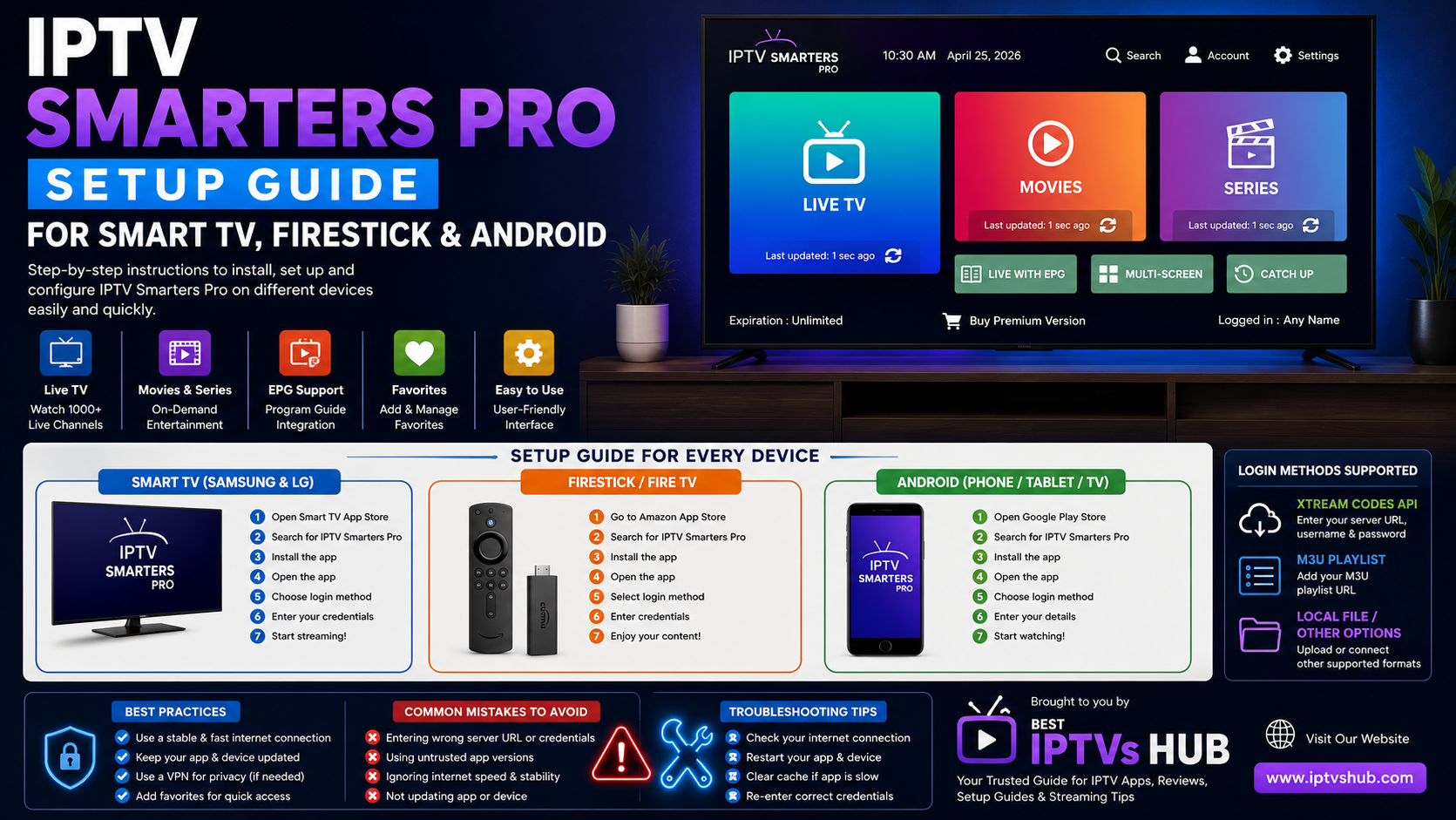
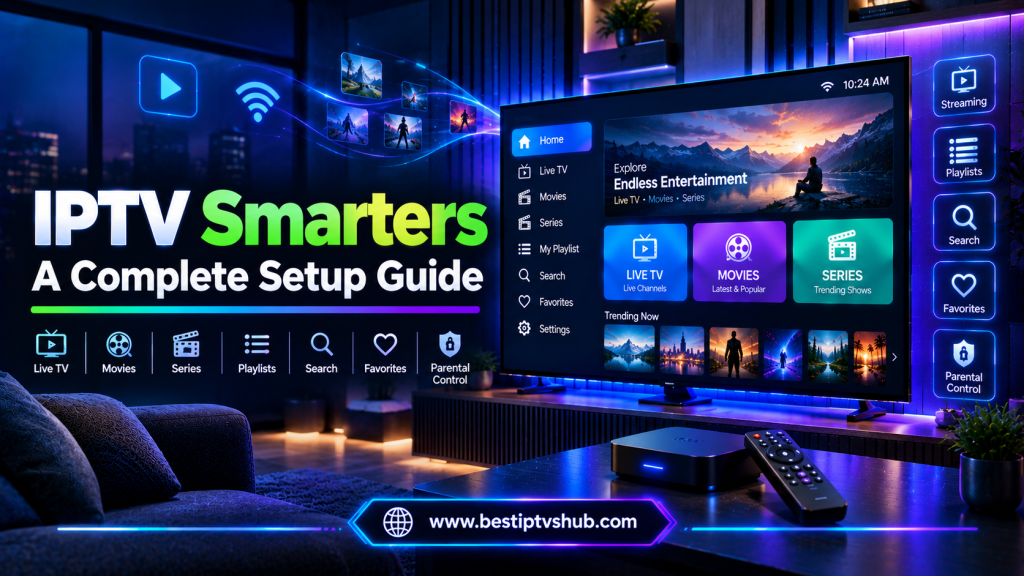
Setting up an IPTV player should be simple. In reality, many users run into confusing login screens, unsupported devices, playlist errors, buffering, or uncertainty about which installation method to use. This IPTV Smarters Pro setup guide explains how to set up a compatible version of the app on Smart TVs, Amazon Fire TV devices, and Android devices. You will also learn how to enter supported account credentials, troubleshoot common problems, improve streaming performance, and choose the right setup method for your device. Whether you are using a Samsung or LG Smart TV, Firestick, Android TV, Google TV, or an Android mobile device, the basic goal is the same: install a compatible IPTV player, enter valid credentials from an authorized content provider, and configure the app for a smooth viewing experience.
Quick Answer: How Do You Set Up IPTV Smarters Pro?
To set up IPTV Smarters Pro, install a compatible version of the app on your device, open it, choose the available login method, and enter the credentials provided by your authorized IPTV or streaming service. Depending on the version and service, this may include:
After logging in, the app may organize available content into sections such as:
Live TV
Movies
Series
Catch-up content
Favorites
The exact screens, features, and installation process can vary depending on your device and the version of the application.
IPTV Smarters Pro Setup at a Glance
| Device | Installation Method | Setup Difficulty | Best For |
|---|
| Samsung Smart TV | Compatible app store or supported installation method | Easy | TV-only setup |
| LG Smart TV | Compatible app store or supported installation method | Easy | webOS users |
| Firestick / Fire TV | Official or compatible supported source | Moderate | Flexible streaming |
| Android TV | App store or supported installation | Easy | Large-screen viewing |
| Google TV | Compatible app installation | Easy | Modern TV interface |
| Android Phone/Tablet | Supported app source | Easy | Mobile viewing |
Important: App availability can vary by device model, operating system, country, and software version. Always verify compatibility before installing an app or paying for any activation or subscription.
What Is IPTV Smarters Pro?
IPTV Smarters Pro is a media player interface designed to work with compatible IPTV and streaming credentials. It is important to understand that an IPTV player and a content provider are not necessarily the same thing. The player provides the interface used to:
The content itself is provided separately through credentials or a compatible playlist. This distinction matters because installing an IPTV player alone does not automatically provide television channels or streaming content. For the best experience, users should use legitimate and properly authorized content services and comply with applicable copyright and broadcasting laws.
Why IPTV Smarters Pro Setup Matters
A correct setup can make a significant difference in how easy the service is to use. When the app is configured properly, users may benefit from:
Faster access to content
Better category organization
Easier navigation
Program guide integration where supported
Favorites management
Improved multi-device flexibility
A poor setup, on the other hand, can create unnecessary problems. For example, entering the wrong server address may result in a login failure. Using an outdated app version may cause compatibility issues. A weak Wi-Fi connection may be mistaken for an application problem. The same principle applies to digital platforms more broadly: technology works best when the setup, interface, and user experience are aligned.
At Best IPTVs HUB, the goal is to help users better understand IPTV apps, compatible devices, setup options, and practical troubleshooting so they can make more informed decisions.
Before You Start: What You Need
Before beginning the IPTV Smarters Pro setup process, make sure you have the necessary information.
Your Device: You will need one of the following compatible devices:
A Stable Internet Connection: A reliable connection is essential. For the best experience:
Use a strong Wi-Fi signal
Consider Ethernet for stationary TV devices
Avoid heavy downloads while streaming
Restart your router if you experience unusual connectivity problems
Valid Login Details: Your authorized provider may give you:
Username
Password
Server URL
M3U playlist URL
Do not guess these details. A small error, such as an extra space or incorrect URL, can prevent the app from connecting.
How to Set Up IPTV Smarters Pro on a Smart TV
The exact method depends on your Smart TV brand and operating system. Samsung Smart TVs generally use Tizen, while LG Smart TVs use webOS. App availability and features can vary depending on the TV model and region.
Step 1: Check App Compatibility: Before starting, check:
Your Smart TV model.
The operating system version.
Your regional app store.
Whether a compatible IPTV Smarters application is available for your device.
Older Smart TVs may have limited application support.
Step 2: Install the Compatible App: Open your Smart TV's official application store and search for the compatible IPTV player. Only install applications from trusted and legitimate sources. Once installed:
Open the application.
Review the available login options.
Select the method supported by your authorized service.
Step 3: Choose Your Login Method: Depending on the application version, you may see options such as:
Choose the option that matches the information provided to you. Example: Credential-Based Login: You may be asked to enter:
Enter the details exactly as provided. A common mistake is entering a web page address instead of the actual server URL supplied for the account.
Step 4: Allow the App to Load Content: After successful authentication, the application may download available categories and program information.Depending on the service and your connection, this can take a few moments. Once loading is complete, you may see sections such as:
Live TV
Movies
Series
Catch Up
Favorites
The available sections depend on your authorized content source.
Step 5: Test the Setup: Before assuming everything is working perfectly, test:
If one channel does not work but others do, the problem may not be with the application itself.
How to Set Up IPTV Smarters Pro on Firestick
Firestick and Fire TV devices are popular because they provide a flexible streaming environment. However, the installation process can differ depending on the application’s current availability in the official Amazon Appstore and your region.
Step 1: Update Your Firestick: Before installing any app:
Open Settings.
Go to your Fire TV system settings.
Check for available updates.
Restart the device after updating if necessary.
Keeping the operating system current can help reduce compatibility problems.
Step 2: Check the Official App Availability: First, check the Amazon Appstore for a compatible and legitimate version of the app. If an application is not available through your local official store, use only installation methods authorized by the developer and permitted by your device and local rules. Avoid downloading unknown modified applications from untrusted websites.
Step 3: Install and Open the App: Once installed:
Open the IPTV player.
Accept only necessary permissions.
Choose the supported login option.
Enter your credentials carefully.
Step 4: Configure Your Account: If your provider supplied username/password credentials and a server address, select the corresponding login method. If you received an M3U playlist URL, select the playlist option if supported by the app version. Double-check:
Username spelling
Password capitalization
Server URL
URL prefix
Extra spaces
Step 5: Organize Your Firestick Home Screen: For easier access:
Move the app to your main app row
Keep the Firestick updated
Close unused applications
Restart occasionally if performance becomes slow
This can be particularly useful on older Fire TV devices with limited available storage or memory.
How to Set Up IPTV Smarters Pro on Android TV and Google TV
Android TV and Google TV devices are generally well suited to television-focused media applications.
Step 1: Open the App Store: Search for a compatible IPTV Smarters application through the official app store available on your device. Before installing, check:
Developer information
App ratings and reviews
Device compatibility
Required permissions
Step 2: Install and Launch the App: After installation:
Open the app.
Select your preferred login method.
Enter the credentials supplied by your authorized provider.
Step 3: Wait for Content Synchronization: The app may take time to load:
Channel categories
Movies
Series
EPG information
Logos and metadata
Do not repeatedly close the application while it is performing its first sync.
Step 4: Customize the Interface: Depending on the app version, you may be able to:
Customization can make the experience significantly easier, especially when a service provides a large number of channels.
How to Set Up IPTV Smarters Pro on Android Phones and Tablets
The mobile setup process is usually straightforward.
Step 1: Install a Compatible Version: Use a legitimate and trusted source appropriate for your device. Before installing, verify:
Step 2: Select the Login Option: Choose the login method that matches the credentials you received. Common methods may include:
Step 3: Enter Details Carefully: Copy and paste long URLs when possible. Typing a long server address manually can result in errors.
Step 4: Test Both Wi-Fi and Mobile Data: If the app works on Wi-Fi but not on mobile data, or vice versa, the issue may be related to your network configuration rather than the app.
Understanding IPTV Smarters Pro Login Options
One of the most confusing parts of IPTV Smarters Pro setup is choosing the correct login method. The correct option depends on the type of credentials provided by your authorized service.
Login With API Credentials: This typically requires:
Server URL
Username
Password
The app may then automatically organize supported content into separate sections. This can be convenient because users do not have to manually manage every individual stream.
Login With an M3U Playlist: An M3U playlist contains information about available streams. The process generally involves:
Choosing the playlist option.
Entering a playlist name.
Adding the valid M3U URL.
Allowing the app to load the content.
M3U playlists are widely supported by many IPTV players. However, the experience depends on the quality and organization of the playlist and whether the content source provides compatible metadata.
How to Improve IPTV Smarters Pro Performance
A properly configured app can still experience performance issues. The following steps can help.
Use Ethernet When Possible: For a stationary Smart TV or streaming device, Ethernet can provide a more stable connection than Wi-Fi. This is especially useful if:
Your router is far from the TV
Multiple people use the network
Walls interfere with Wi-Fi
You stream high-resolution content
Restart Your Router: If buffering suddenly starts across multiple streaming applications, restart your:
Router
Modem
Streaming device
Then test again.
Clear Unnecessary Apps: On devices with limited storage or memory:
Keep Software Updated: Updates can improve:
Compatibility
Security
Performance
Bug fixes
However, app interfaces can change after updates, so always review the current instructions for your specific device.
Common IPTV Smarters Pro Problems and How to Fix Them
Problem: Login Failed: Possible causes include:
Incorrect username
Incorrect password
Incorrect server URL
Expired credentials
Temporary server issue
What to Do?
First, carefully compare your details with the credentials provided to you. Do not repeatedly change settings without identifying the issue. If the credentials are correct but the problem continues, contact the authorized service provider.
Problem: Channels Are Not Loading: This may happen because of:
Try:
Restarting the app.
Checking your internet connection.
Restarting the device.
Updating the app if an official update is available.
Testing another legitimate streaming application.
Problem: Buffering: Buffering is not always caused by the IPTV app. Possible causes include:
A useful troubleshooting test is to compare your connection using another reliable streaming application. If all streaming services buffer, the problem may be related to your internet connection or network.
Problem: EPG Is Not Showing: Program guide issues can occur when:
The service does not provide EPG data
The guide is still syncing
The app and data source are not configured correctly
Wait for synchronization to complete and check whether the content source supports guide information.
Common Mistakes to Avoid
A successful IPTV Smarters Pro setup is often about avoiding simple mistakes.
1. Installing an App Without Checking Compatibility: Do not assume the same application version works on every device. Always check:
2. Using Untrusted Downloads: Avoid unknown websites offering modified or suspicious versions of streaming apps. Unverified applications can create privacy and security risks.
3. Entering the Wrong Server Address: This is one of the most common setup errors. A server URL must match the information provided by your authorized service. Do not replace it with the provider's public website unless they specifically instruct you to do so.
4. Ignoring Your Internet Connection: Many users reinstall an app multiple times when the actual problem is weak or unstable Wi-Fi. Test the network first.
5. Forgetting to Update the Device: An outdated Smart TV or Firestick can create compatibility problems. Keep both the device and applications updated through appropriate official channels.
6. Expecting the Player to Provide Content Automatically: An IPTV player is typically a platform for accessing compatible credentials or playlists. You may still need a separate authorized content source.
Best Practices for IPTV Smarters Pro Setup
Following these best practices can make setup and daily use easier.
1. Keep Your Credentials Private: Treat usernames, passwords, and subscription information like any other account credentials. Do not post them publicly.
2. Use a Strong and Stable Network: For the best experience:
Place your router in a suitable location
Use modern Wi-Fi standards when available
Consider Ethernet for TVs and fixed streaming devices
Reduce unnecessary network traffic during streaming
3. Create Favorites: Instead of searching through every category each time, create a list of your most-watched channels. This improves usability.
4. Check EPG Settings: If your authorized service supports a program guide, verify that it loads correctly. An EPG can make channel browsing significantly faster.
5. Keep the Interface Simple: Do not change advanced settings unless you understand their purpose. If everything is working correctly, unnecessary changes can create new problems.
6. Document Your Setup: If you manage multiple devices, keep a secure record of:
Never store sensitive credentials in an unsecured public document.
Smart TV vs Firestick vs Android: Which Is Best?
The right platform depends on your needs.
Smart TV: Best for Simplicity: A direct Smart TV installation means:
Fewer devices
Fewer cables
One remote
The downside is that app availability can be limited by the TV's operating system.
Firestick: Best for Flexibility: A Fire TV device can provide:
Performance can vary between different Fire TV models.
Android TV or Google TV: Best for Customization: Android-based television platforms can offer:
For users who want more control over their setup, Android TV or Google TV can be a strong option.
A Practical Example of the Setup Process
Imagine you have an Android TV device and valid credentials from an authorized provider. Your setup process might look like this:
Confirm that the device is connected to the internet.
Install a compatible IPTV player from a trusted source.
Open the application.
Select the login method that matches your credentials.
Enter the server URL, username, and password exactly.
Allow the application to synchronize available content.
Open Live TV and test navigation.
Add frequently watched channels to favorites.
Check whether the EPG loads correctly.
Update the app and device when official updates are available.
This structured approach is usually better than repeatedly changing settings at random.
Why a Good Setup Creates a Better User Experience
Technology should make things easier, not more complicated. A good IPTV setup provides:
Clear navigation
Faster access to content
Better organization
Fewer repeated steps
Easier troubleshooting
This is also a useful lesson for small businesses and digital platforms. Whether you are building a streaming interface or a business website, users should quickly understand:
What the platform offers
Where to click
How to find information
What action to take next
A complicated user journey can lead to frustration and abandonment. That is why platforms such as Best IPTVs HUB focus on clear guides, comparisons, setup tutorials, and practical information that helps users make better decisions.
FAQs: IPTV Smarters Pro Setup Guide
1. How do I set up IPTV Smarters Pro on my Smart TV?
First, check whether a compatible version is available for your Smart TV model and operating system. Install it from a trusted source, open the app, select the login method supported by your authorized service, and enter the credentials exactly as provided. Once the account loads, test the available sections, navigation, and program guide.
2. Can I install IPTV Smarters Pro on a Firestick?
Compatibility and availability can vary by Fire TV model and region. Check the official Amazon Appstore first for an appropriate version. If another installation method is required, use only sources authorized by the application developer and ensure that the method complies with your device settings and local rules.
3. What information do I need to log in?
Depending on your authorized content provider and the app version, you may need a username, password, server URL, or M3U playlist URL. Always use the exact information supplied by your provider. Do not assume that the provider's public website address is the same as the streaming server address.
4. Why is IPTV Smarters Pro not loading channels?
Possible causes include incorrect credentials, an unstable internet connection, playlist synchronization problems, an outdated app, device issues, or a problem with the authorized content source. Start by checking your credentials and internet connection before reinstalling the application.
5. Does IPTV Smarters Pro provide TV channels?
IPTV Smarters Pro generally functions as a media player interface. The available content depends on the credentials, playlist, or authorized service connected to the application. Installing the player alone does not necessarily provide channels or other content.
6. Why does IPTV Smarters Pro keep buffering?
Buffering can be caused by weak Wi-Fi, network congestion, internet instability, device performance limitations, high stream quality, or issues with the content source. Try testing your network, restarting your router and device, reducing network congestion, and using Ethernet where practical.
7. Is IPTV Smarters Pro available on every Smart TV?
No. Availability depends on the Smart TV brand, model, operating system, region, and current application support. Samsung, LG, Android TV, Google TV, Fire TV, and other platforms can have different app ecosystems. Always verify compatibility before starting the setup process.
Conclusion
Setting up IPTV Smarters Pro on a Smart TV, Firestick, or Android device can be straightforward when you follow the correct process for your platform. The most important steps are simple:
Check device compatibility.
Install the app from a trusted source.
Use valid credentials from an authorized service.
Enter server and login information carefully.
Test your internet connection before blaming the app.
Keep your device and applications updated.
Organize your favorites and settings for easier daily use.
There is no single setup method that works identically on every device. Samsung and LG Smart TVs, Firestick, Android TV, Google TV, and Android mobile devices can each have different installation options and interfaces. By understanding your device and choosing the correct login method, you can avoid many of the most common setup problems.
Call to Action
Need more help choosing the right IPTV app, understanding device compatibility, or troubleshooting a streaming setup?
Best IPTVs HUB provides practical guides, IPTV app comparisons, Smart TV tutorials, device setup information, and helpful troubleshooting resources to make the process easier.
Explore more guides on Best IPTVs HUB to learn about Smart TV apps, Firestick setup, Android streaming devices, IPTV players, and the latest streaming technology.
Visit Best IPTVs HUB and find the right and best server like FOX player, IB player, IBO TV and many more.