


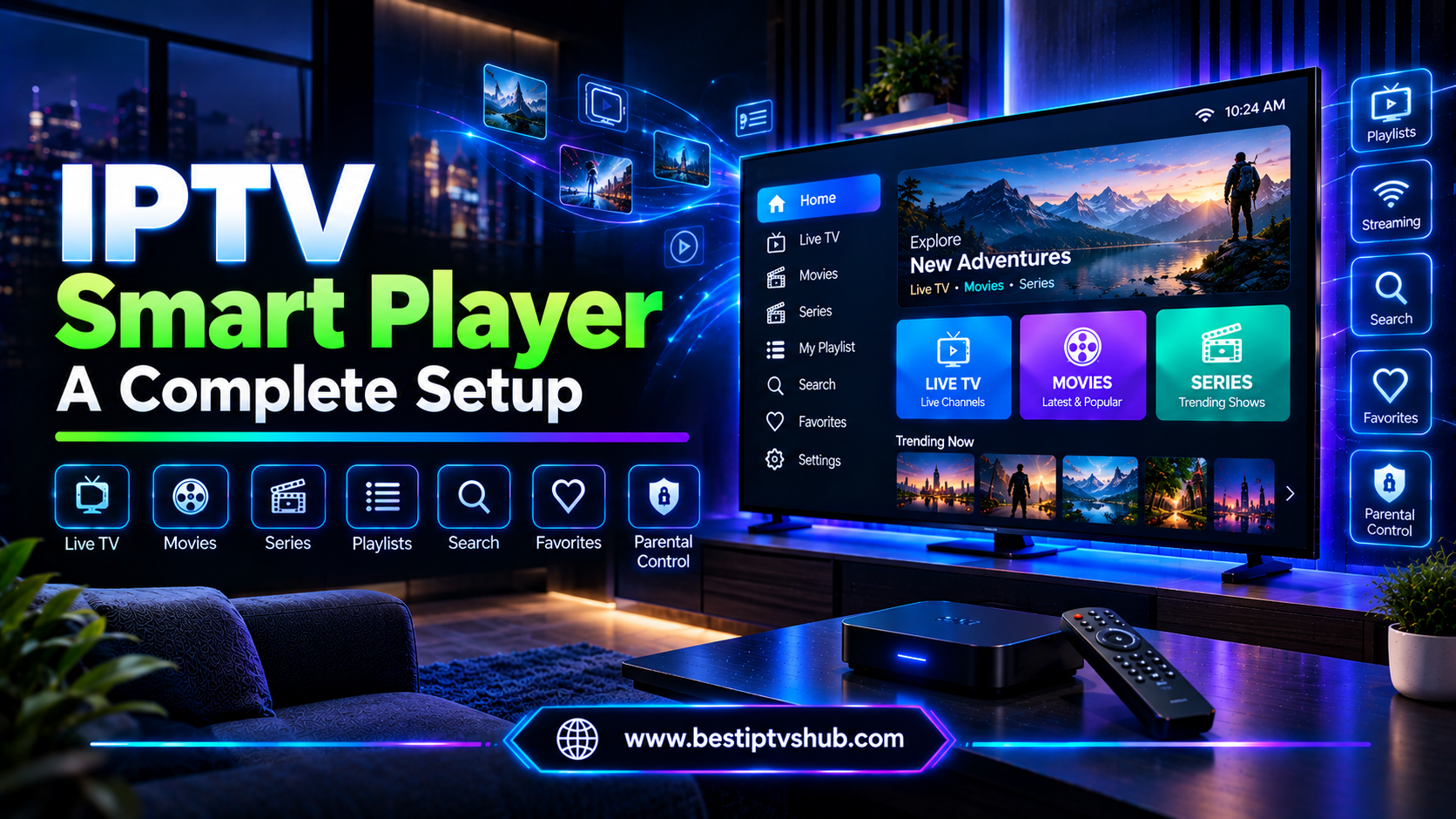
IPTV Smart Player: A Complete Setup

Introduction
Before installing an IPTV Smart Player, it is important to check whether your device supports the application, whether your internet connection is fast enough, and whether you have a compatible source of content. Overlooking these requirements can lead to installation errors, buffering, login failures, or an application that does not work on your television. The basic IPTV Smart Player requirements are a compatible device and operating system, a stable internet connection, the correct player application, and a supported playlist or account from a legitimate content provider. Depending on the application, you may also need an activation code, device registration, electronic program guide (EPG) data, or sufficient storage. One important distinction: “IPTV Smart Player” can refer to different applications with similar names. Their features, supported devices, activation methods, and connection formats may differ. This guide explains the general requirements and shows you what to verify before installation.
What Is an IPTV Smart Player?
An IPTV Smart Player is an application designed to play compatible television or video streams delivered over an internet connection. Depending on the specific application, it may organize live channels, movies, series, playlists, and program schedules in one interface. However, an IPTV player is not necessarily a television subscription. There are three separate components to understand:
IPTV player: The software used to play compatible streams.
Content provider: The service that supplies access to television channels or on-demand media.
Internet connection: The network used to deliver the video to your device.
Some providers bundle their own application and subscription. Others require users to install a separate player and enter connection details supplied by a content provider. A player does not automatically provide channels simply because it has been installed. You must use a compatible, authorized source of content.
IPTV Smart Player Requirements at a Glance
| Requirement | What to check |
|---|---|
| Compatible device | Smart TV, Android TV, streaming device, phone, tablet, or computer |
| Operating system | Supported version for the exact application |
| Internet connection | Stable broadband or another reliable internet connection |
| Application | Correct player version from a trusted source |
| Content access | Authorized subscription, playlist, or provider account |
| Login details | Credentials, activation code, or supported connection information |
| Storage and memory | Enough resources for the app and its features |
| Network setup | Reliable Wi-Fi or Ethernet |
| Program guide | EPG support if you want channel schedules |
| Security | Official downloads, protected credentials, and current software |
Not every IPTV Smart Player requires all these components separately. Always check the documentation for your particular application.
1. Compatible Devices and Operating Systems
Device compatibility is one of the most important IPTV Smart Player requirements. An application may work on one television but not another, even if both are advertised as Smart TVs.
Android TV and Google TV
Many IPTV player applications are designed for Android-based televisions and streaming devices. However, availability depends on the individual application and its supported Android version. Before installing, confirm:
The application is available for your device.
Your Android or Google TV version is supported.
The app supports remote-control navigation.
Your device has enough storage for installation and updates.
Your device can play the video formats and resolutions you intend to use.
Use the official app store on your device whenever possible. A phone-oriented app may not provide a good television experience, even if it can technically be installed.
Samsung Smart TVs
Samsung televisions commonly use the Tizen operating system. Android TV applications do not automatically work on Tizen. If you own a Samsung Smart TV, check whether the exact IPTV Smart Player is listed in the Samsung TV app store for your model and region. Older models may have different compatibility from newer ones. If the application is unavailable, a supported external streaming device may be an alternative.
LG Smart TVs
LG Smart TVs commonly use webOS. An application designed for Android TV or Tizen is not automatically compatible with webOS. Check the official application listing, supported television models, and operating-system requirements before subscribing to a service or purchasing additional hardware.
Android phones and tablets
Some IPTV players offer mobile versions for Android smartphones and tablets. These are useful for portable viewing, but mobile and television versions may have different interfaces or features. Check the minimum Android version, installation source, storage needs, and permissions.
iPhones, iPads, and computers
Support for iOS, iPadOS, Windows, macOS, or web browsers varies by application. Do not assume that an app available on Android is also available on Apple devices or desktop computers.
Practical tip: Identify your device model and operating system before searching for an application. This helps you avoid downloading an incompatible version or following installation instructions intended for another platform.
2. Internet Speed Requirements
An IPTV Smart Player uses your internet connection to receive video streams. A fast connection can help, but stability is equally important.
Recommended internet speed by video quality
The following figures are practical planning estimates for a single stream. They are not universal minimum requirements for every application or provider.
| Video quality | Suggested available speed |
|---|---|
| Standard definition (SD) | 3–5 Mbps |
| High definition (HD) | 5–10 Mbps |
| Full HD (1080p) | 10–15 Mbps |
| 4K Ultra HD | 25 Mbps or more |
Your actual requirements depend on video compression, stream quality, provider infrastructure, and other devices using the same connection. For comparison, Netflix recommends 3 Mbps for 720p HD, 5 Mbps for 1080p Full HD, and 15 Mbps for 4K streaming. These figures offer a useful reference, but your IPTV service may have different requirements. See the official Netflix internet connection recommendations.
Why internet stability matters?
Suppose your broadband plan provides 100 Mbps. That may be more than enough for one HD stream, but playback can still buffer if your TV has a weak Wi-Fi signal or your provider's server is experiencing problems. To improve performance:
Place your router in an open, central location.
Use Ethernet for a compatible television or streaming device when practical.
Connect to a suitable Wi-Fi band with a strong signal.
Pause large downloads when watching live events.
Test the connection near your television rather than relying only on the advertised broadband speed.
Check whether several devices are streaming simultaneously.
If your connection has a monthly data allowance, consider your viewing habits as well. High-resolution streaming can consume substantially more data than standard-definition video.
3. Storage, RAM, and Hardware Requirements
There is no single hardware specification that applies to every IPTV Smart Player. Requirements depend on the application, operating system, video quality, and additional features.
Available storage
The application needs enough free storage to install and update correctly. Additional space may be useful if the player stores settings, cached information, thumbnails, or temporary files. If installation fails because of low storage:
Remove applications you no longer use.
Delete unnecessary downloads.
Clear an application's cache if its settings permit it.
Restart the device and try again.
Avoid deleting important system files or using unfamiliar cleaning applications.
RAM and processor performance
A modern supported device will generally provide a smoother experience than an older device with limited memory or outdated software. However, there is no universal RAM requirement for every application. Check the developer's published specifications. If the player opens slowly, freezes, or repeatedly closes, other running applications or an aging device may be contributing to the problem.
Video and audio support
The player, device, and content stream must support compatible video and audio formats. Some devices also have limits on supported resolutions, codecs, subtitles, and audio passthrough. If a stream has sound but no picture, or picture but no sound, the issue may involve format compatibility rather than internet speed alone.
4. A Compatible IPTV Playlist or Account
An IPTV Smart Player needs an authorized source of content. Depending on the service and application, setup may use a provider account, playlist, portal, or another supported connection method.
M3U and M3U8 playlists: Some applications support M3U or M3U8 playlist formats. These files or URLs can contain references to streams and may include channel names and other metadata. However, support for M3U does not mean that every playlist will work. The playlist must be valid, accessible, and compatible with the application.
Xtream-compatible login details: Certain IPTV players support a login method that uses information such as a server address, username, and password supplied by a compatible provider. Not every application supports this method. Confirm the supported connection formats in the official documentation before purchasing a subscription.
Portal or device-based activation: Some applications use device registration or a portal-based configuration process. Depending on the service, you may need an activation code, device identifier, or other account information. Only enter these details into the intended application or verified provider website. Treat activation codes, playlist URLs, and login credentials as sensitive information.
Electronic Program Guide (EPG): An electronic program guide displays schedule information for supported channels. Depending on the service, guide data may be included automatically or require separate configuration. If program information is missing, check whether your provider supplies EPG data and whether the player supports the format provided.
5. How to Install an IPTV Smart Player Safely
Installation steps vary by device and application, but the general process is straightforward.
- Step 1: Identify the correct application: Search for the exact app name in your device's official app store. Check the developer name, supported devices, recent updates, and published requirements. Several applications can use similar names. Verify the developer and product identity instead of choosing an app based on its name alone.
- Step 2: Check compatibility: Confirm your device model, operating-system version, and regional availability. Review the app listing to make sure it supports your intended device.
- Step 3: Install and open the app: Install the application from a trusted source and follow the on-screen instructions. Review permissions and avoid granting access that appears unrelated to the app's purpose.
- Step 4: Add your authorized content source: Use the connection method documented by your provider and supported by the player. Enter credentials carefully and avoid posting connection details publicly.
- Step 5: Configure playback settings: Where supported, review video quality, subtitles, audio settings, EPG options, and other available preferences.
- Step 6: Test the setup: Test a permitted stream and confirm that video, audio, and program information work as expected. If playback fails, troubleshoot the connection, application, account, and provider separately. Do not disable security protections or install modified application files just to make an installation work.
Why IPTV Smart Player Requirements Matter
Checking requirements before installation saves time and helps prevent unnecessary expenses.
- Avoid incompatible purchases: You may not need a new Smart TV or streaming box. Confirming app support first can help you use hardware you already own.
- Reduce buffering and playback problems: Matching your connection to your intended streaming quality, improving Wi-Fi coverage, and accounting for simultaneous streams can make playback more reliable.
- Understand the difference between software and content: Knowing whether an app includes a service or only plays compatible streams helps you understand what you are paying for. It also prevents confusion when an installed player opens successfully but displays no channels.
- Protect your privacy and account: Trusted downloads, secure passwords, and careful handling of playlist URLs reduce the risk of malicious software and unauthorized access.
- Make better decisions for business use: Hotels, guesthouses, restaurants, and other businesses may have different requirements from residential viewers. Commercial distribution or public display of television content may require additional licenses or an appropriate commercial service. A home subscription should not automatically be assumed to permit business use.
Common Mistakes to Avoid
- Assuming every Smart TV supports the same applications: Samsung Tizen, LG webOS, and Android TV are different platforms. Verify compatibility for your exact model and region.
- Confusing the player with the subscription: A player may not supply channels or movies. Check whether a separate authorized service is required.
- Choosing an app with a similar name: Several products may use similar names. Check the developer, official listing, operating-system requirements, and installation instructions.
- Blaming every buffering problem on internet speed: Wi-Fi interference, network congestion, device limitations, and provider-side problems can also affect playback. Test each possibility before changing your broadband plan.
- Using unverified playlists: An unfamiliar playlist can be outdated, unreliable, unauthorized, or maliciously designed. Use content sources you are entitled to access and trust.
- Ignoring activation and renewal terms: If the app or provider requires activation, understand whether the charge covers software features, content access, or both. Review billing, automatic renewal, cancellation, and refund terms.
- Installing unofficial APKs without checking the source: Files from unverified websites may contain malware or altered code. Prefer official stores and verified developer instructions.
Best Practices for a Reliable IPTV Smart Player Setup
Use these recommendations as a final checklist:
Verify the exact app: Confirm its developer and official download source.
Check the operating system: Make sure your device meets the app's published requirements.
Test the network: Check speed and stability near the device.
Choose suitable hardware: Consider available storage, software support, and video compatibility.
Use an authorized content provider: Verify subscription terms and distribution rights.
Protect login information: Keep passwords, playlist URLs, and activation codes private.
Keep software updated: Install supported updates from trusted sources.
Test before committing: If an official trial is available, check compatibility before buying a long-term plan.
Troubleshoot systematically: Test another permitted stream or device, restart the app, and consult official support.
Review commercial restrictions: If using IPTV in a business, confirm the provider's terms and licensing requirements.
Frequently Asked Questions
1. What are the minimum IPTV Smart Player requirements?
The basic requirements are a supported device and operating system, an internet connection, the correct application, and an authorized source of content. Depending on the app, you may also need login credentials, an activation code, or a compatible playlist. Check the developer's specifications because there is no single minimum hardware or software requirement for every IPTV Smart Player.
2. Which devices support IPTV Smart Player applications?
Support varies by application. Some players work on Android phones, Android TV, or Google TV, while others may offer versions for Samsung Tizen, LG webOS, iOS, Windows, macOS, or web browsers. Do not assume that all versions exist for every platform. Check the official app listing for your exact device and operating-system version.
3. How much internet speed is required for IPTV Smart Player?
As a general planning guide, allow around 3–5 Mbps for SD, 5–10 Mbps for HD, 10–15 Mbps for Full HD, and 25 Mbps or more for 4K per stream. These estimates vary with compression and provider requirements. A stable connection is essential, and additional bandwidth may be necessary when several people stream at the same time.
4. Does IPTV Smart Player come with channels?
Not necessarily. Many IPTV player applications are designed to play compatible content but do not provide channels, movies, or subscriptions. You may need an account or playlist from a separate provider. Read the app description and subscription terms carefully so you understand what is included and whether the content is authorized.
5. Why is IPTV Smart Player not working on my Smart TV?
Common reasons include unsupported operating systems, regional app-store restrictions, outdated software, invalid login details, incompatible playlists, or network problems. First, verify that you installed the correct application for your TV platform. Then check your connection, credentials, and provider instructions. If the app is not supported on your television, consider a compatible streaming device rather than installing unverified software.
6. Do I need an M3U playlist to use IPTV Smart Player?
Not always. Some applications support M3U or M3U8 playlists, while others use provider accounts, Xtream-compatible login details, portal configuration, or a proprietary setup process. The correct method depends on the app and service. Use only a connection method supported by your application and authorized by your content provider.
7. Is IPTV Smart Player safe and legal to use?
A player application can be legitimate, but its safety depends on the software source and how it handles data. Download it from a trusted source, review permissions, and protect your credentials. The legality of streamed content depends on licensing, distribution rights, and applicable laws. Use providers authorized to distribute their content and avoid suspicious services or modified application files.
Conclusion
The most important IPTV Smart Player requirements are device compatibility, a reliable internet connection, the correct application, and a supported source of authorized content. Additional requirements, such as activation codes, playlists, EPG data, or specific hardware capabilities, depend on the application you choose. Before installing anything, verify the exact app and developer, check your operating system, test your internet connection, and review the provider's subscription terms. These simple checks can help you avoid compatibility issues, improve playback reliability, and protect your account. For more IPTV technology information, Best IPTVs HUB can help readers explore related topics such as IPTV player setup, application requirements, and streaming troubleshooting. Always confirm app-specific details with the official developer and service provider.
Call to Action
Want to learn more about IPTV players, Smart TV setup, Fire TV, Android TV, streaming devices and online television technology?
Visit us for practical IPTV guides, streaming tutorials, device comparisons and troubleshooting resources. Find the right and best server like Ababeel TV, FOX player, IB player, IBO TV and many more.