


TiviMate Smart TV Requirements

Introduction
Buying a Smart TV does not necessarily mean you can install every streaming application on it. Some televisions run Android TV or Google TV, while others use systems such as Samsung Tizen or LG webOS. This difference is particularly important if you want to use TiviMate.
Direct Answer: TiviMate is designed primarily for Android TV and compatible Android-based television devices. To use it directly on a Smart TV, the television must support Android TV or a compatible Google TV environment and have access to a supported installation method. Samsung Tizen and LG webOS televisions generally cannot install the Android version of TiviMate directly. You can use a compatible external Android TV or streaming device connected through HDMI instead. TiviMate also requires a compatible playlist from a content source you are authorized to access.
This guide explains TiviMate Smart TV requirements, compatible devices, internet speed, playlist formats, installation, Premium features and common troubleshooting steps.
TiviMate Smart TV Requirements at a Glance
| Requirement | Details |
|---|---|
| Primary platform | Android TV |
| Google TV | Compatible when the device supports the app |
| Samsung Smart TV | Not generally supported natively on Tizen |
| LG Smart TV | Not generally supported natively on webOS |
| Android TV box | Suitable if compatible with the app |
| Remote control | Designed for TV remote navigation |
| Playlist formats | M3U, Xtream Codes, Stalker Portal |
| Internet | Stable broadband or Wi-Fi |
| Content | User-supplied, legally authorized playlists |
| EPG | Supported with compatible guide data |
| Premium | Unlocks app features, not channels |
| Phones and tablets | Not optimized for touch devices |
The Google Play listing identifies Android TV as TiviMate’s intended platform and lists support for M3U, Xtream Codes and Stalker Portal, along with EPG, multiple playlists, favorites, catch-up, recording, search, parental controls and multiview.
1. What Is TiviMate?
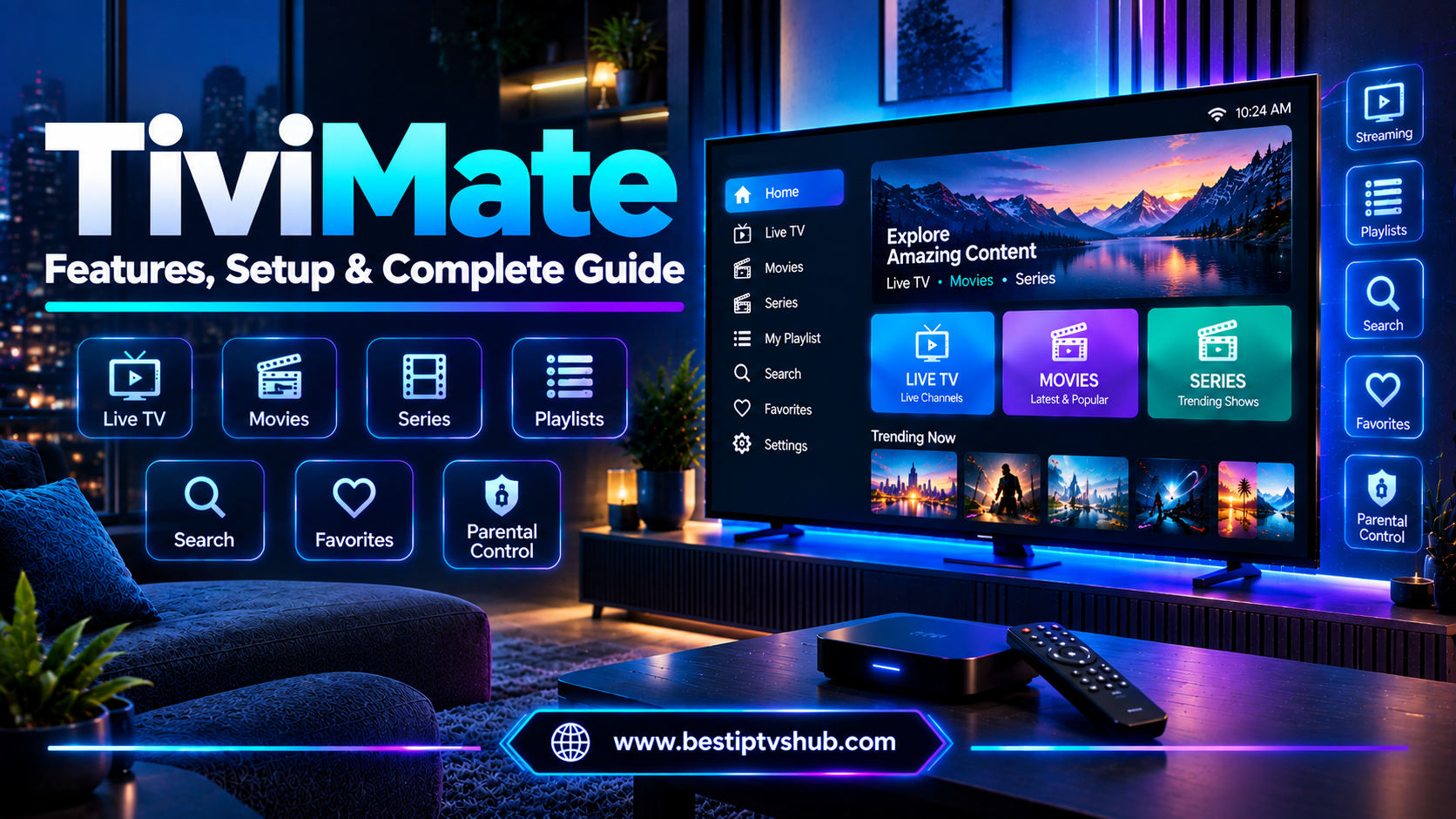
TiviMate is an IPTV media player designed to organize and play compatible playlists on television-focused devices. Its interface is built for large screens and remote navigation, making it suitable for users who want to browse channels and program information from a TV. TiviMate can help users:
Organize live TV playlists
Browse channels by category
View an Electronic Program Guide (EPG)
Save favorite channels
Search channels and programs
Manage multiple playlists
Use supported catch-up and recording features
Configure parental controls and other playback settings
However, TiviMate does not provide channels, movies, subscriptions or streaming access. You must add your own playlist from a source you are legally permitted to use. A TiviMate Premium purchase unlocks application features only and does not include media content.
TiviMate vs an IPTV Service: A media player and a content service have different roles:
TiviMate: The application that loads and plays compatible playlists.
Content provider: The source that supplies streams or media access.
Smart TV or streaming device: The hardware that runs the application.
Internet connection: The network used to access online streams.
Understanding this distinction helps you identify whether a problem is caused by the player, device, playlist, content source or network.
Which Smart TVs Are Compatible With TiviMate?
TiviMate compatibility depends on the operating system, not simply on whether a television is labelled “Smart TV.”
Android TV and Google TV
Android TV is TiviMate’s primary platform. Google TV is an interface built on Android TV technology, so compatible Google TV devices can also run Android TV applications. However, app availability can still vary by model, region and device certification. Examples of Android TV or Google TV devices include:
Sony televisions running Android TV or Google TV
Compatible TCL Android TV or Google TV models
Selected Hisense televisions with Android TV or Google TV
Chromecast with Google TV
Compatible Android TV streaming boxes
The exact television model and operating system version matter. Check the Google Play Store on your device for the official TiviMate listing and verify that it is marked as compatible.
Samsung Smart TVs
Most Samsung Smart TVs use Tizen rather than Android TV. The Android version of TiviMate is not designed for Tizen and generally cannot be installed directly through the Samsung app store. If you own a Samsung TV, you can connect a compatible Android TV or Google TV streaming device to an HDMI port and install TiviMate on that device. Your Samsung TV then acts as the display.
LG Smart TVs
Most LG Smart TVs use webOS. As with Samsung Tizen, webOS does not natively install Android applications. If TiviMate is unavailable in the LG Content Store, a compatible external Android TV or Google TV device may provide an alternative. Check the external device’s app availability before purchasing it.
Roku and other Smart TV platforms
Roku and other non-Android television platforms do not generally support the Android version of TiviMate. Check for an officially supported version before attempting installation. Do not assume that screen mirroring or unofficial software will provide the same functionality as running the app natively.
Hardware Requirements for TiviMate
TiviMate’s official listing does not specify one universal minimum RAM, processor or storage configuration for all compatible devices. Hardware needs vary with the device, operating system, video resolution and playlist size. Before installation, check the following:
- Operating System and App Availability: Your television or streaming device should run a compatible Android TV environment and be able to install the official app. A generic device advertised as an “Android box” may run mobile Android rather than Android TV, so verify its software and app-store support.
- Storage Space: Keep sufficient free storage for:
The TiviMate application
App updates
Temporary cache
Playlist and guide information
Other applications installed on the device
- Processor and Memory: A responsive interface depends partly on the hardware. Older or low-powered devices may experience slow menus, delayed playlist loading or difficulty playing high-bitrate streams. For a better experience, choose a device with reliable manufacturer support, adequate memory and a current operating system. Avoid assuming that a device supports every video codec simply because it can install TiviMate.
- Remote Control: TiviMate is designed for television use and remote-control navigation. Make sure your remote can move through menus, select channels, open settings and control playback. A TV-focused interface is particularly useful when the device is used as a primary home entertainment system.
Internet Requirements for TiviMate
A stable internet connection is essential for streaming. TiviMate itself does not set a universal internet-speed minimum because playback depends on the stream and content source. The following are practical planning estimates, not official TiviMate specifications:
| Video Quality | Suggested Download Speed |
|---|---|
| SD | Around 5 Mbps |
| HD | Around 10 Mbps |
| Full HD | Around 15 Mbps |
| 4K | 25 Mbps or more |
Actual speed requirements depend on video bitrate, compression, network stability and the number of simultaneous streams.
Wi-Fi vs Ethernet
- Wi-Fi is convenient for televisions in different rooms, but its performance can be affected by distance, walls, interference and network congestion.
- Ethernet can provide a more consistent connection for devices with a wired network port. If buffering is frequent, test the device using Ethernet where possible to help identify whether Wi-Fi is contributing to the problem.
For better Wi-Fi performance:
Position the router in an open location.
Avoid placing it behind large objects.
Keep the streaming device within a strong signal range.
Reduce unnecessary network congestion.
Restart the router if the connection becomes unstable.
A fast internet plan alone cannot guarantee smooth playback if the network has high packet loss, unstable Wi-Fi or problems at the content source.
TiviMate Playlist Requirements
TiviMate is a media player, so you need a compatible playlist or media source before you can watch content. The official Google Play listing identifies support for M3U, Xtream Codes and Stalker Portal formats.
- M3U Playlist: M3U is a playlist format that can contain references to media streams and associated information. Depending on the content source and playlist structure, it may include channel names, categories and stream addresses. If you receive an M3U URL from an authorized source, choose the M3U playlist option in TiviMate and enter the URL carefully.
- Xtream Codes: Xtream Codes-style login typically uses:
Server URL
Username
Password
- Stalker Portal: TiviMate also lists Stalker Portal support. If your authorized source uses this method, follow its instructions and confirm the required portal details and device compatibility.
- Protect Your Playlist Details: Playlist URLs and login credentials may contain private access information. Avoid posting them publicly, sending them to unknown support accounts or including them in screenshots shared online. A playlist should come from a source you own or have permission to use. TiviMate does not verify that every playlist is properly licensed.
How to Install TiviMate on a Compatible Smart TV
The easiest installation route is through the official Google Play Store on a compatible Android TV or Google TV device.
Step-by-Step Installation
Connect your Android TV or Google TV device to the internet.
Open the Google Play Store.
Search for TiviMate IPTV Player.
Verify that the developer is Armobsoft FZE.
Check that the listing is compatible with your device.
Select Install.
Open TiviMate after installation.
Follow the welcome instructions and select the option to add a playlist.
Enter the details of a playlist you are authorized to use.
Allow the app to load the available playlist and guide information.
The official Google Play listing is the preferred source when it is available for your device.
What If TiviMate Is Not Listed?
If TiviMate does not appear in the Play Store, your device may not be compatible, may not be certified for the TV app catalogue, or may have regional restrictions. Check the official TiviMate website and the device manufacturer’s support information before considering other installation methods. Avoid modified or “unlocked Premium” APKs from unknown sources, as they can create security and update problems.
Using TiviMate With Samsung or LG TVs
If your Samsung or LG television does not support TiviMate natively, connect a compatible Android TV or Google TV streaming device through HDMI. Then:
Select the correct HDMI input on the television.
Complete the streaming device’s initial setup.
Connect it to Wi-Fi or Ethernet.
Open its supported app store.
Install TiviMate if available.
Add your authorized playlist.
This approach runs TiviMate on the external device rather than on the television’s own operating system.
TiviMate Free Version and Premium Requirements
TiviMate offers a free version and a Premium upgrade. Premium is intended to unlock additional application features, not provide streaming content. The official listing describes features such as multiple playlists, favorites, catch-up, recording, search, parental controls and multiview. Some advanced functionality may require Premium, depending on the app version. Before purchasing:
Review the current Premium terms.
Confirm which features are included.
Check supported device and account limits.
Use the official purchase or account-management process.
Keep the purchase account details secure.
A Premium licence does not replace the need for a playlist, content subscription or permission to access the media.
EPG and Other Features
An Electronic Program Guide (EPG) displays program schedules and related information. TiviMate supports EPG functionality when compatible guide data is available. Depending on the playlist and application version, other features may include:
Favorites: Save frequently watched channels.
Search: Find channels and programs.
Multiple playlists: Organize more than one compatible source.
Catch-up: Access supported past broadcasts when provided by the source.
Recording: Record supported streams where the device and source permit it.
Parental controls: Restrict access to selected content.
Multiview: Display multiple supported streams on one screen.
Not every feature is available with every playlist. For example, catch-up and recording may depend on the content source, stream restrictions, device storage and app version.
Why TiviMate Smart TV Requirements Matter
Checking TiviMate requirements before installing helps avoid compatibility and performance problems. A television may support streaming apps but still use an operating system that cannot run TiviMate. A compatible device may install the app but struggle with high-bitrate streams because of hardware limitations or unstable internet.
A complete setup includes: Compatible device → Supported app → Authorized playlist → Stable network → Compatible stream. For households, checking these elements can reduce installation time and unnecessary troubleshooting. For hotels, restaurants, offices and other businesses, additional considerations include multi-device management, network capacity, customer support and commercial content permissions. A media player licence does not automatically grant the right to display content to customers or guests. Businesses should verify the content provider’s licensing and commercial-use terms before deployment.
Common Mistakes to Avoid
- Assuming Every Smart TV Supports TiviMate: Smart TV is a broad term. Confirm the operating system and app-store compatibility instead of relying on the television brand alone.
- Installing the Wrong Application: Look for the official TiviMate IPTV Player listing and verify the developer. Similar app names do not guarantee that the software is genuine or compatible.
- Using Unofficial Modified APKs: Modified APKs can introduce malware, compromise credentials or prevent normal updates. Use the official app listing or a developer-approved source.
- Expecting Channels to Be Included: TiviMate is a media player and does not provide content. You need a compatible playlist from a source you are legally authorized to use.
- Confusing Premium With a Content Subscription: Premium unlocks app features; it does not include channels, streams or media.
- Overlooking Network Stability: A high advertised internet speed does not guarantee stable playback. Test signal strength, latency, congestion and wired connectivity if buffering occurs.
- Ignoring Device Limitations: A device may install TiviMate but still have limitations with particular codecs, resolutions or playlist sizes. Test the intended stream format on the actual hardware.
Best Practices for a Reliable TiviMate Setup
Confirm Android TV or compatible Google TV support before installing.
Use the official TiviMate listing whenever available.
Keep the device operating system and application updated.
Choose hardware with reliable manufacturer support.
Use Ethernet or strong Wi-Fi for stable playback.
Start with one authorized playlist and test it.
Confirm EPG, catch-up and recording support separately.
Keep playlist URLs and account credentials private.
Review Premium terms before making a purchase.
For business installations, test one device and confirm commercial content permissions before expanding.
TiviMate Guides and Online Visibility for Small Businesses
Technical setup guides can help technology businesses answer common customer questions, attract relevant search traffic and build trust with prospective users. Best IPTVs HUB can organize TiviMate-related content into a focused topic cluster, including:
TiviMate Requirements
TiviMate Smart TV Requirements
TiviMate Installation Guide
TiviMate M3U Setup
TiviMate Xtream Codes Setup
TiviMate EPG Setup
TiviMate Buffering Troubleshooting
TiviMate Premium Features
Each article should target a distinct search intent and link naturally to related guides. Clear explanations, accurate compatibility information and practical troubleshooting steps are more useful than publishing several pages with nearly identical content. For small businesses and startups, a well-structured website can also make technical services easier to understand. Useful content, responsive design, clear navigation and relevant calls to action help visitors find answers and contact the business.
Frequently Asked Questions
1. Can I install TiviMate directly on any Smart TV?
No. TiviMate is designed for Android TV and remote-control navigation, so it is not compatible with every Smart TV operating system. Samsung Tizen and LG webOS televisions generally cannot run the Android version directly. If your TV is not compatible, you can consider a supported external Android TV or Google TV device.
2. Does TiviMate work on Samsung Smart TVs?
TiviMate is not generally available as a native application for Samsung televisions running Tizen. You can use a compatible Android TV or Google TV streaming device connected to the Samsung TV’s HDMI port, then install TiviMate on that external device if supported.
3. Does TiviMate work on LG Smart TVs?
Most LG Smart TVs run webOS, which does not natively support Android applications. TiviMate is designed for Android TV, so direct installation on a standard LG webOS television is generally not supported. A compatible external Android TV or Google TV device is an alternative.
4. What are the minimum internet requirements for TiviMate?
TiviMate does not publish one universal minimum internet speed for all streams. As practical estimates, allow around 5 Mbps for SD, 10 Mbps for HD, 15 Mbps for Full HD and 25 Mbps or more for 4K per stream. Actual requirements depend on bitrate, network stability, source performance and simultaneous usage.
5. Does TiviMate provide live TV channels?
No. TiviMate is a media player that requires users to add their own playlists. It does not provide channels, streams, movies or subscriptions. Use only content sources you own or are legally authorized to access.
6. What playlist formats does TiviMate support?
The official Google Play listing identifies support for M3U, Xtream Codes and Stalker Portal playlists. The correct option depends on the details supplied by your authorized content source. Enter credentials carefully and keep private playlist information secure.
7. Do I need TiviMate Premium to use the app on a Smart TV?
You can start with the free version on a compatible device. Premium unlocks additional application features, but it does not provide channels or content. Review the current official Premium terms to understand which features and device limits apply before purchasing.
Conclusion
TiviMate Smart TV requirements mainly depend on your television’s operating system, the availability of a compatible app, your device’s performance and the playlist you intend to use. It is designed for Android TV and compatible Android-based television devices. Samsung Tizen and LG webOS users will generally need a compatible external streaming device to run it. A stable internet connection, supported playlist and properly configured EPG can further improve the experience.
Before installing, verify the exact device compatibility, use official software sources, protect your credentials and remember that TiviMate is a media player—not a content provider. Businesses should also confirm commercial content rights before using streaming setups in public or customer-facing environments.
Call To Action
Want to learn more about IPTV players, Smart TV setup, Fire TV, Android TV, streaming devices and online television technology?
Visit us for practical IPTV guides, streaming tutorials, device comparisons and troubleshooting resources. Find the right and best server like Ababeel TV, FOX player, IB player, IBO TV and many more.